
My Collaborative Dining Table

The first activity of the Collaborator Module in the Ontario Extend mOOC is to reflect upon the process and people involved in a professional collaboration project. Inspired by the creative Prezi presentation by fellow extender Melanie Jones, I decided to make a PowToon of my reflection https://www.powtoon.com/online-presentation/g5MN1zwLmJH/?mode=movie# .


Photo by Ian Schneider on Unsplash

In this module we are thinking about communities of practice. Meaning groups of people who exchange information to solve problems and improve what they do (Bates, 2014). Through this mOOC and twitter I was exposed to Melanie’s Prezi which made me think about this activity in a different way. To extend beyond the parameters of the activity and learn something new. I learned about Prezi (a software I had heard about but never used) then I took what I learned and applied it to PowToon (an account I have had for awhile but had not used). In addition, to learning new software applications I was able to think about the roles, processes and challenges of the people involved in my collaborative project.

My key takeaway is that it is important to include as many people outside of my circle to gain fresh ideas, perspectives and to work together to breathe new life into my projects. Bates (2014) proposes that in this age of digitization that communities of practice will play an important role in knowledge sharing and informal learning. From my perspective the Ontario Extend mOOC is a blend of formal and informal learning. The informal learning I am doing with my fellow extenders through reading their posts, blogs and Twitter feeds is improving what I do as an educator. According to our reading a community of practice has three primary features. In my opinion, the Ontario Extend mOOC meets all three features.

  • Domain: We are a group of people focused on post-secondary education who have knowledge and experiences to share.
  • Community: We are coming together to learn.
  • Practice: An excellent example of practice in action is Melanie sharing her work, the tool she used and her resources. This enhanced my learning in this module and I believe, is a great example of knowledge exchange.


References:
Bates, T. (2014, October 1). Online Learning and Distance Education Resources. Retrieved from https://www.tonybates.ca/2014/10/01/the-role-of-communities-of-practice-in-a-digital-age/
eCampus Ontario. (2019). EXTEND 101-EN.1 – Extend MOOC. Module 4: Collaborator, Ways to Collaborate
Jones, M. (2019, March 11). Melrad.ca. Retrieved from MelradJones: Exploring Technology in the Classroom: http://melrad.ca/tech/the-collaborative-dining-table/h
Powtoon Link: https://www.powtoon.com/my-powtoons/?#/
Prezi Link: https://prezi.com/?gclid=CjwKCAjw4LfkBRBDEiwAc2DSlD2Xtcg4cm3y6ffsQHj6QZg3uy-b-uDQ4faiyB_kt_Sjp-HvaE-_RhoCalsQAvD_BwE
Connecting Tech to My Curriculum: Improving My Tech Game

The final activity in eCampus Module 2: Teacher for Technologist is to connect technology to my curriculum. This Module was the one I was most interested in because I think in order to be an effective teacher I need to improve my tech game. I was particularly interested in how I could utilize technology to make learning flexible for my students.

The struggle I find with technology are all of the options, the time it takes to evaluate the options, and how do I know that a particular tool is pedagogically sound. Like Alice, I can easily spend hours down the proverbial rabbit hole. So, I was pleased to be provided with evaluation tools that I could test out.

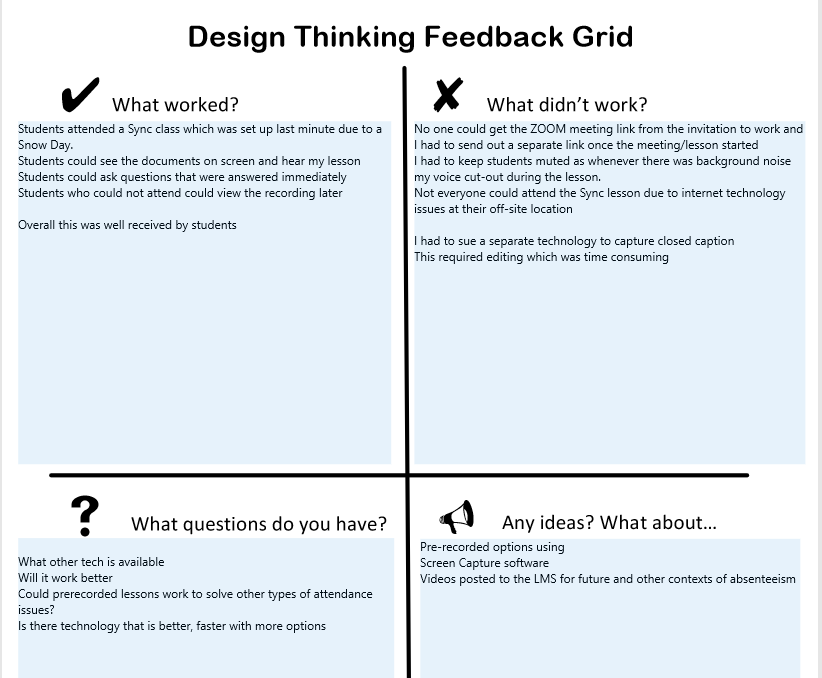
The Design Thinking Feedback Grid tool is effective to assess the functionality of technology and identify areas for improvement (eCampus Ontario, 2019). I used this tool to evaluate the technology I used for an online lesson I held due to a snow day. To give you some context this was a last minute decision using a technology I was only mildly familiar with. I utilized ZOOM meeting tools https://zoom.us/meetings to record the sync class.

eCampus Ontario 2019 Design Thinking Feedback Grid

In order to post the lesson I had to ensure that it was AODA (Accessibility for Ontarians Disability Act) compliant which meant closed captioning. My institution provides Office365. On the advice of my coach @jesslynwyn I was directed to Microsoft Streaming.

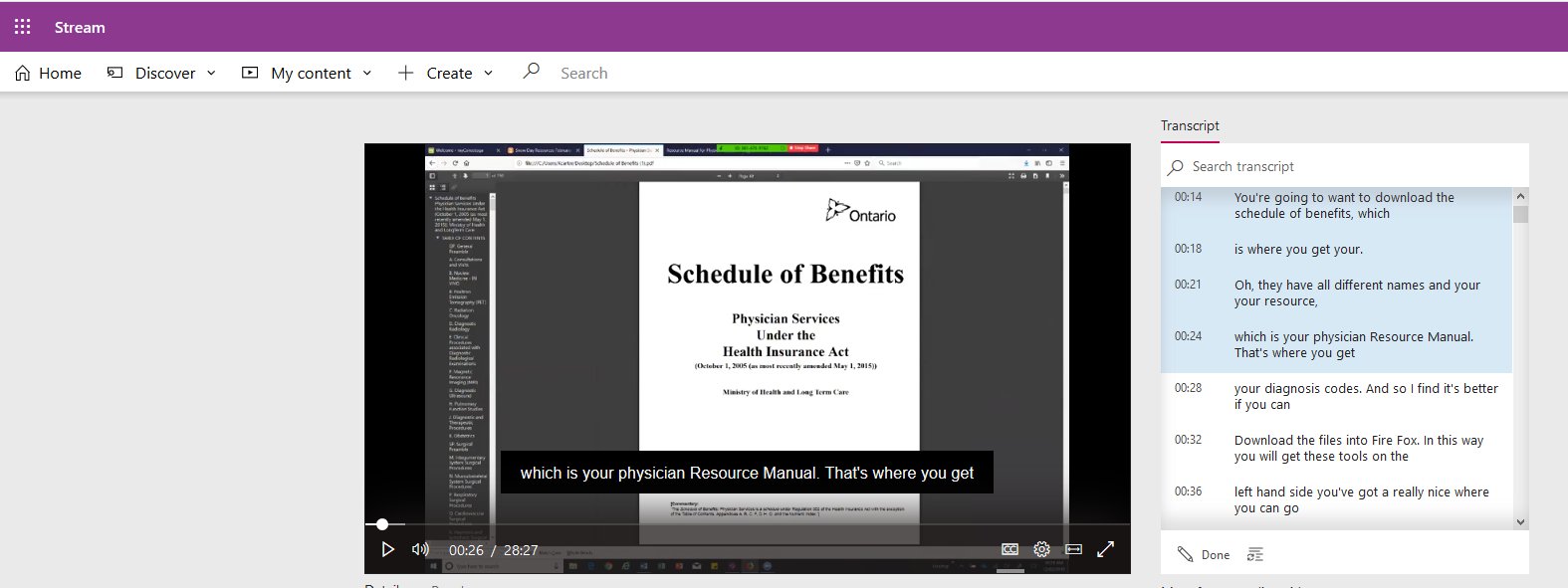
Microsoft Streaming is an app that is included with Office365 and it allows you to record videos. Unfortunately, there is not a screen capturing option. So, I used the screen capturing option in ZOOM meeting and uploaded to Microsoft stream. Microsoft Stream added in closed captioning to the ZOOM screen capture and provided a script that could be edited when my enunciation was not clear. Please see a snip of my video displaying the closed caption.

Screen Capture of Video Snow Day Lesson

Microsoft Stream Provides:

  • Helpful “How To” videos
  • Creation of time codes so that viewers can skip to the part of the video they want to watch.
  • Transcript editing
  • Permission setting: by groups and private channels
  • Ability to embed the video into the LMS (Learning Management System)
  • Storage within the institutional app

I found The SECTIONS Model a helpful tool in evaluating this technology because it led me through eight aspects of evaluation and consideration of technology (eCampus Ontario, 2019). This is a framework created by Dr. Tony Bates and an overview of the tool can be found at https://opentextbc.ca/teachinginadigitalage/part/9-pedagogical-differences-between-media/

I applied the SECTIONS model to Microsoft Stream and it ticked all the boxes:

  • Students – are provided Office 365 by the institution
  • Ease of use – it is intuitive with helpful videos
  • Cost – The institution has already paid for it. I can use free screen capturing software and upload the video to Microsoft Stream
  • Teaching and Pedagogical Factors – It worked well to keep us on tract for completion of the course
  • Interaction – The Sync lesson worked well and for students who could not make the meeting they could view the video at their convenience and hear the questions that were asked.
  • Organizational Issues – The organization supports the technology along with @jesslynwynd
  • Networking – The group function is tied to office365 email which makes ease of use for sharing and networking.
  • Security and Privacy – It is within the boundaries of the institution and permissions are set by the person who uploads the video

What I learned is I can make recordings of my lessons that will give my learners flexible options to engage in my courses. While the ZOOM sync lesson worked on the snow day I am now exploring Screencastomatic screen recorder and video editor https://screencast-o-matic.com/account to replace the ZOOM meeting screen capture. I think the additional options to edit the video, make notations on the video, and add in music will lead to better quality videos and increased flexibility for my learners.

I think I may have just improved my tech game.

References:

eCampus Ontario. (2019). EXTEND 101-EN.1 – Extend MOOC. Module 2: Teacher for Technology.

Jesslynwynd @https://syncdup@wordpress.com